


Lens AI: Identify Anything
4.2227.00 Reviews
App Specs
- Version
- 1.0.51
- Updated On
- License
- Free
- Downloads
- 500,000+
- Developer
- xLabs Dijital Hizmetler Anonim Şirketi
- Categories
- Tools
- Platform
- Android
Screenshots

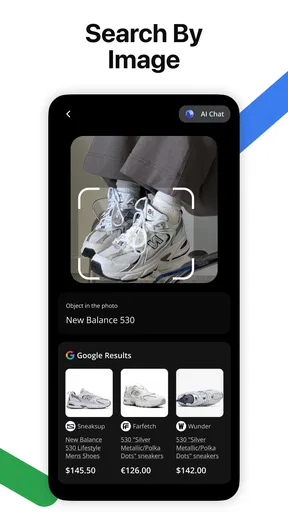
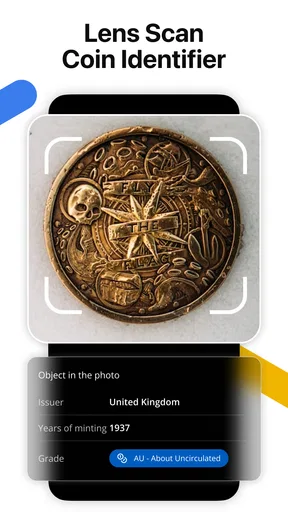
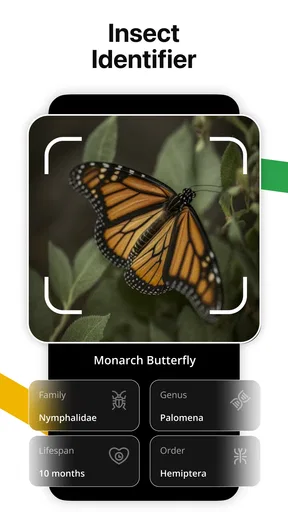
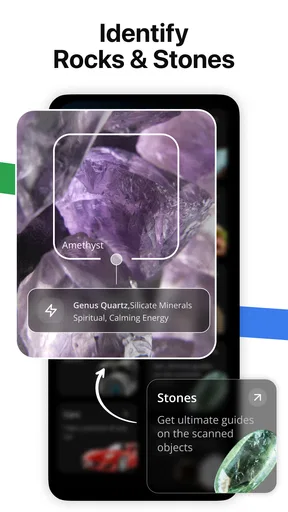
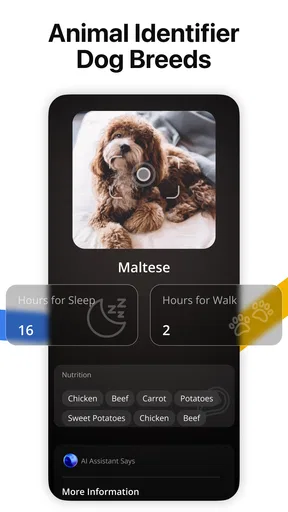
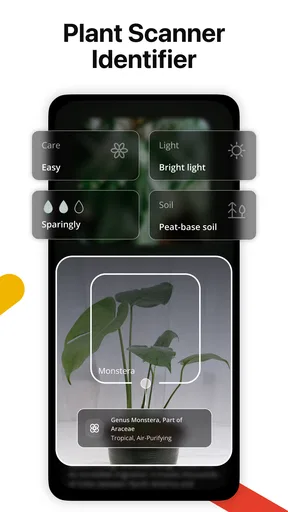

 Analysis by AppCompare
I approached Lens AI: Identify Anything as a practical visual-search tool rather than a novelty camera app. Its purpose is straightforward: use an image to search for information or identify what appears in it. That can be useful when a text search feels awkward, when you do not know the right words, or when you want to investigate an object from a picture already saved on your phone. In my experience, the most important question is not whether the idea is impressive, but whether the process is comfortable and understandable for different people in everyday situations.
This free tools app is developed by xLabs Dijital Hizmetler Anonim Şirketi and is available for users aged Everyone. It has reached over 500 thousand installs and holds a 4.2 average from around 23 thousand ratings, which suggests that the basic visual-search concept is attracting a substantial audience. The current version is 1.0.51, and it requires at least OS 12. That last point matters: before planning to use it on an older phone, I would check the operating-system requirement first.
How the interface feels when readability and navigation matter
The strongest part of a visual-search app should be the path from opening the tool to receiving a useful result. Lens AI: Identify Anything is built around that familiar camera-and-image-search idea, so it makes sense for people who prefer showing an object instead of describing it with words. I found that approach especially helpful for unfamiliar products, plants, signs, clothing, household items, and images containing text. The app’s value is highest when the visual clue is obvious but the correct search term is not.
For a reader who has difficulty with dense screens, a focused image workflow can be easier than navigating a traditional search engine. Instead of composing a detailed query, you begin with something concrete: a photograph. That reduces the language burden and can also help users who are still learning the local vocabulary. Someone who cannot remember the name of a tool, ingredient, or landmark may get a useful starting point simply by capturing it.
There is an important distinction between identifying something and fully understanding the result. A visual match can point you toward a product, object, or topic, but I would still read the result carefully before treating it as certain. Similar-looking objects can lead to different answers, particularly when the image is cropped, dark, cluttered, or taken from an unusual angle. I use the first result as a lead, not as a final authority.
That habit also improves navigation. Rather than repeatedly taking photographs until the app produces a perfect answer, I would begin with the clearest available image, inspect the result, and then refine the search if necessary. A close, well-lit view usually communicates more than a distant photograph containing several unrelated objects. This is a small workflow change, but it prevents the experience from becoming a frustrating cycle of guesses.
People with reduced vision may appreciate the idea of replacing typed descriptions with visual input, but the result screen still needs to be readable and easy to follow. Text size, contrast, spacing, and the ability to understand which result is primary all affect whether the app is genuinely useful. I would not assume that visual search automatically solves every reading problem. It can reduce the effort of entering a query while leaving the interpretation of the answer to the user.
Worth Reading Before You Choose

EA SPORTS FC Mobile 26 Is a Bigger Football Game, but It Takes Time

Flipboard Shows What News Apps Must Do Beyond the Feed

Switching to Android Auto Means Rethinking Your Driving Routine

Google Calendar Makes a Crowded Week Easier to Manage

Ludo King Makes the Most of the Minutes Between Plans

Baby Panda World Brings Quick Play to Modern Phones, but Its Game Library Feels Busy
For users who rely on screen magnification or other phone-level display adjustments, the practical experience will depend on how the app’s controls respond to those settings. The sensible approach is to test the complete process with the phone configured as you normally use it: opening the app, choosing an image, reviewing the result, and returning to try another search. A tool that works only when display settings are reset is not a comfortable daily tool.
Why image choice affects the experience more than expected
One of my most useful takeaways is that image preparation is part of using the app well. A photo with the subject near the center and little visual clutter gives the search system a clearer target. If I want to identify a small object on a crowded table, I would crop it first or move closer rather than expect the app to understand every item in the frame. This is particularly helpful for users who find repeated attempts tiring or who need extra time to frame a shot.
For text inside an image, I would keep the camera steady and avoid glare. A tilted receipt, reflective label, or low-contrast sign can be difficult for any image-recognition system to interpret. Taking a second photograph from a slightly different angle may be more effective than changing the wording of a search, because the input itself is the main source of uncertainty.
Another useful tactic is to photograph context when the object alone is ambiguous. A close-up can reveal texture and shape, while a wider image can show where the item is being used. If the first search produces a broad or confusing answer, trying the opposite framing can provide a better clue. This two-image strategy is more practical than assuming one photograph must answer everything.
Motor, sensory, and situational considerations
Visual search can be appealing to people who find typing difficult, slow, or physically uncomfortable. Pointing a phone at an object may require less sustained text entry than writing a descriptive query. It can also help someone who knows what an item looks like but cannot easily spell its name. However, taking a good photograph still involves holding the phone, aiming it, tapping a control, and sometimes adjusting distance or lighting.
That creates a trade-off for users with limited hand movement, tremors, fatigue, or difficulty maintaining a steady grip. If the first image is blurry, the app may not give a useful answer, and repeating the action can become tiring. In those situations, a saved image may be easier than taking a new photograph. I would also prepare images in advance when possible, especially for objects that are difficult to photograph while being held.
People with hearing loss may find an image-led workflow more convenient because it does not depend on spoken interaction. On the other hand, visual information is not automatically accessible to someone who is blind or has very limited sight. The app’s central input is visual, and the usefulness of its output depends on how clearly the phone presents the result through the user’s preferred settings or assistive technology. I would treat it as a possible supplement, not a guaranteed replacement for a dedicated accessibility tool or human assistance.
Users with light sensitivity or visual processing differences may prefer taking pictures away from harsh glare and then reviewing the result at a calmer pace. A live camera situation can be demanding when the scene is busy, bright, or moving. Using an existing image reduces that pressure and gives the user more control over when to begin the search. This is one reason I see the saved-image route as more than a backup option.
There is also a cognitive benefit to separating capture from interpretation. In a noisy shop or crowded street, I might take the picture first and examine the result later, when I can concentrate. That makes the app more useful for people who need extra processing time or who become overwhelmed by several visual and environmental demands at once.
Everyday situations where the app makes sense
Imagine finding an unfamiliar kitchen utensil in a rental apartment. Typing a description could be awkward because you may not know whether it is a slicer, peeler, strainer, or a specialized tool. A clear photo gives Lens AI: Identify Anything a chance to suggest a direction, after which you can compare the result with the object in front of you. The app is not replacing judgment here; it is helping you move from “I have no idea what this is” to a more useful search.
A similar workflow works for a product label in a supermarket. If the packaging is unfamiliar, photographing the front can help locate related information or identify the product category. I would still inspect the actual label for ingredients, warnings, allergens, and expiry details rather than relying on an image result. This is a key safety boundary: image search is convenient for discovery, but it should not be the sole basis for decisions involving health, food restrictions, medication, or personal safety.
Travelers can also use the app when they encounter an object, building detail, or sign they cannot name. The visual route avoids guessing the spelling of a local term. Yet crowded scenes are challenging, and a photograph containing several possible subjects can produce an answer that focuses on the wrong thing. Framing the intended subject clearly is especially important when the surroundings are visually complex.
For students, the tool can be a starting point when researching an unfamiliar diagram, historical object, or piece of equipment. I would use it to generate search ideas, then verify those ideas through reliable educational sources. That approach teaches a useful habit: let visual recognition suggest possibilities, but do not confuse a suggestion with a confirmed explanation.
How it compares with ordinary search and familiar camera tools
Compared with a standard web search, the main advantage is the reduced need to know the right words. A typed search is better when you already understand the subject and need precise control over terms, filters, dates, or technical details. Lens AI: Identify Anything is better at the first step, when the object is in front of you but its name is not.
Compared with a phone’s built-in camera search features, the choice may come down to workflow and preference. A dedicated app can feel more focused if you want one place for image-based identification rather than a broader camera or search ecosystem. However, switching between separate tools can be less convenient than using a feature already integrated into the phone. I would choose this app when its focused process feels clearer, not simply because it uses artificial intelligence.
Compared with manually asking another person, the app offers privacy and independence in situations where you would rather investigate quietly. That independence is valuable, but human help remains better for ambiguous objects, urgent decisions, and situations where a wrong interpretation could cause harm. The most sensible role for this app is as a fast research assistant, not an unquestionable expert.
Remaining barriers and practical trade-offs
The first barrier is the operating-system requirement. The app needs OS 12 or later, so it is not suitable for every older device. That is a simple compatibility check, but it can save time before installation. The app itself is free to download, while in-app purchases range from $7.99 to $39.99 per item. I would begin with the free experience and decide whether the way I use it justifies any optional spending.
Those purchase levels make it important to understand your own usage pattern. Someone who only occasionally identifies an object may find a free workflow or an existing phone feature sufficient. A person who regularly searches by image may value a dedicated tool more, but should still consider how often the paid options would actually be used. I would not pay simply because a result is uncertain; uncertainty often comes from the photograph, the subject, or the context.
Another barrier is environmental dependence. A camera-based search can be affected by poor lighting, reflections, motion, distance, and background clutter. These are not minor details for users who cannot easily reposition a phone or take several attempts. Preparing a small collection of clear images in advance can reduce the physical demand, but it is not practical for spontaneous objects encountered outside the home.
Privacy is another point I would consider before photographing personal documents, faces, private rooms, or sensitive belongings. The app’s purpose requires image handling, so I would avoid using it on material that I would not want to share with an online service. For a receipt or document, cropping out names, addresses, account details, and codes is a sensible precaution before searching.
There is also a risk of overconfidence. A polished-looking answer can feel more certain than it really is, especially when the object resembles several alternatives. I recommend checking distinctive details against the photograph and using a second source when the result affects purchases, repairs, health, accessibility, or safety. This is not a criticism unique to one search tool; it is a necessary boundary for all automated visual identification.
Navigation may be harder for people who need highly predictable layouts, very large controls, or strong assistive-technology support. Because individual needs vary, I would judge the app by the complete task rather than by the first screen: can you start a search, select the right image, understand the response, and try again without confusion? If any one of those steps is consistently difficult, a built-in phone feature, a text-based search, or assistance from another person may be the better choice.
My inclusive verdict on Lens AI: Identify Anything
After looking at it through the lens of different abilities and contexts, I see this as a useful visual-search option for people who want a simpler way to investigate unfamiliar things. Its strongest quality is the ability to begin with an image instead of a carefully worded query. That can support people who struggle with spelling, language, typing, or remembering an object’s name, and it can make research feel more approachable.
I would recommend it to curious users, travelers, students, shoppers, and anyone who often encounters objects they cannot immediately name. It is also worth trying for people who prefer working from saved photos, since that approach can reduce pressure from busy environments, limited hand control, or the need to process information slowly. The app is free to start, has an Everyone age rating, and comes from xLabs Dijital Hizmetler Anonim Şirketi, making it easy to consider as a general-purpose tool.
I would be more cautious about recommending it as the main solution for blind users, people who need guaranteed screen-reader behavior, or anyone making high-stakes decisions from an image. I would also skip it if your phone cannot run OS 12 or later, if you rarely search visually, or if an existing integrated camera-search feature already handles your needs with less effort.
The best way to get dependable value is to control the input: isolate the subject, use steady lighting, try a saved image when live capture is difficult, and verify important results elsewhere. With those habits, the app works best as an accessible starting point rather than a final authority. My overall view is positive, but practical and conditional: it can remove the language and typing barrier from visual discovery, while still leaving image quality, result interpretation, device compatibility, and individual access needs firmly in the user’s hands.
Pros
- Identifies plants
- animals
- products
- and landmarks from a single photo.
- Simple interface makes scans quick for casual users.
- Useful for learning unfamiliar objects while traveling or outdoors.
- Provides extra context beyond a basic name in many results.
- Image-based searches can help find similar products or visual references.
Cons
- Results can be inaccurate when photos are blurry
- dark
- or poorly framed.
- Some advanced features may require a subscription or in-app purchase.
- Privacy policies should be checked before uploading personal or sensitive images.
- Recognition quality may vary widely across uncommon objects and species.
- Requires an internet connection for many identification and search features.
FAQs for Lens AI: Identify Anything
What is Lens AI: Identify Anything used for?
Lens AI: Identify Anything is designed to recognize and explain objects, plants, animals, products, landmarks, and other subjects from photos. After you capture an image or select one from your gallery, the app analyzes the visual details and provides information intended to help you understand what you are looking at. Results can vary depending on image quality and subject complexity.
How accurate are the identification results?
The app can be useful for quick visual searches, but its answers should not be treated as guaranteed or professionally verified. Clear, well-lit photos with the subject centered usually produce better results than blurry, distant, or partially hidden images. Identification may be less reliable for similar-looking species, unusual objects, regional products, or subjects outside the app’s supported knowledge.
Does Lens AI: Identify Anything require an internet connection?
Most AI-based image recognition features generally depend on an internet connection because the image is processed through online services. You should expect results to be slower or unavailable when using mobile data with a weak signal or when completely offline. Before downloading, check the app’s current store description and permissions, since offline support and connection requirements may change between versions.
Is Lens AI: Identify Anything free to download and use?
The application may be available to install at no initial cost, but some features can require in-app purchases, a subscription, or viewing advertisements. Premium limits may apply to the number of scans, advanced explanations, or removal of ads. Review the pricing page carefully before starting a trial, especially for automatic renewal terms and cancellation instructions.
Is it safe to upload personal photos to Lens AI: Identify Anything?
You should avoid uploading sensitive images, identity documents, private conversations, medical photographs, or pictures containing other people unless you understand how they are handled. AI recognition services may process images on remote servers, so read the app’s privacy policy and permission requests before use. Also check whether uploaded photos are stored, shared, or used to improve the service.


